Integrate Simu Connect Desktop Client with TAPI
Cloud One offers a TAPI software driver that can be installed on your PC to seamlessly integrate with your Simu Connect Desktop Client (Windows Desktop). This integration allows you to implement click-to-call directly from a variety of TAPI-enabled applications (such as your CRM application) using Simu Connect Desktop Client, eliminating the need for manual dialing of telephone numbers and thus enhancing productivity.
Note: The TAPI integration is available for Simu Connect Desktop Client (Windows Desktop) only.
Requirements:
PBX Server: Version 37.20.0.128 or later
Simu Connect Desktop Client (Windows Desktop): 1.16.4 or later
Windows Operating System: Windows 7, Windows 8, Windows 8.1, Windows 10, Windows 11, Windows Server 2008 R2, Windows Server 2012 R2, Windows Server 2016, and Windows Server 2019 (all 64-bit
- Log in to Simu Connect Desktop Client, go to Preferences > Integration.
- At the top-right corner of the TAPI Integration section, click TAPI Driver Download
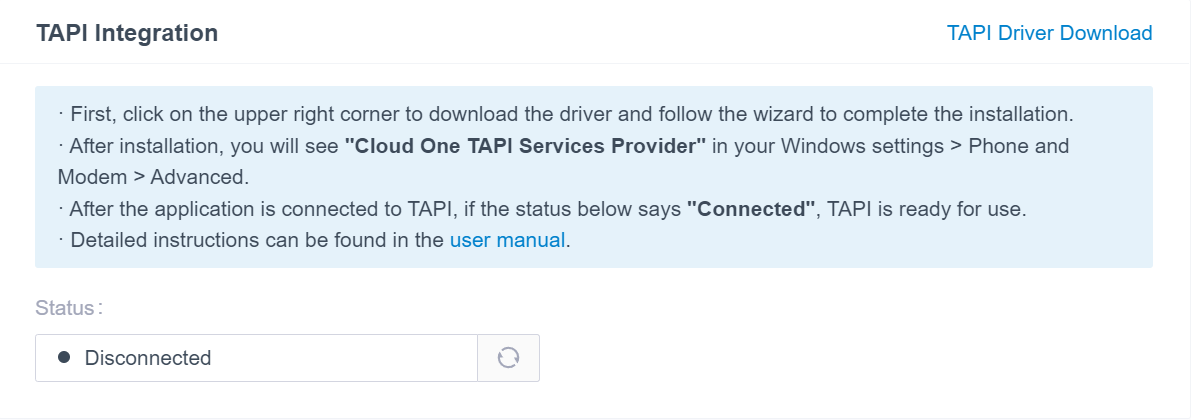
- A Cloud One TAPI Service Provider.exe file is downloaded to your PC.
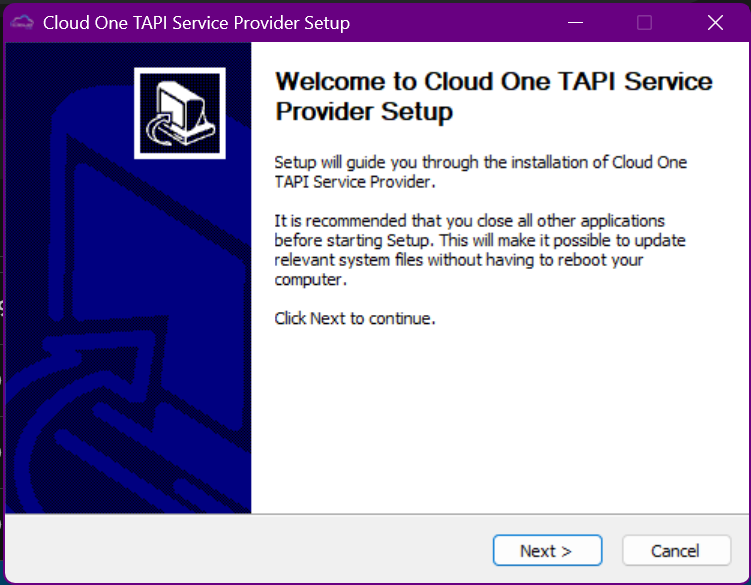
Open the Cloud One TAPI Service Provider.exe to install the TAPI driver.
- Select the desired language.
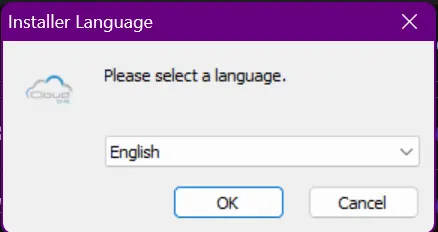
- Click Next
Specify one or more extensions that are allowed to use this TAPI integration, then click Install to continue the installation.
- Note: By default, you can add up to 5 extensions on this setup page. If you require more lines, you can add the desired extensions by editing the TAPI driver's configuration files after installation.
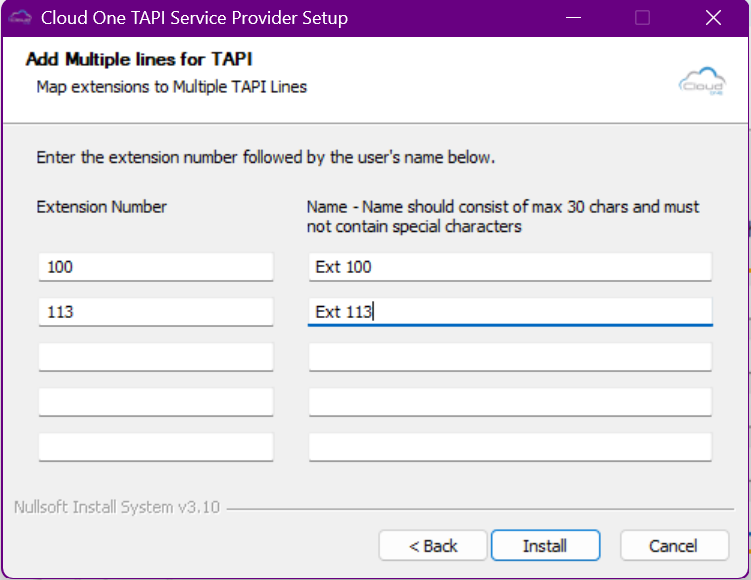
- Extension Number: Enter the desired extension number
Name: Enter a name to help you identify the extension.
- Note: Only letters, numbers, and spaces are allowed.
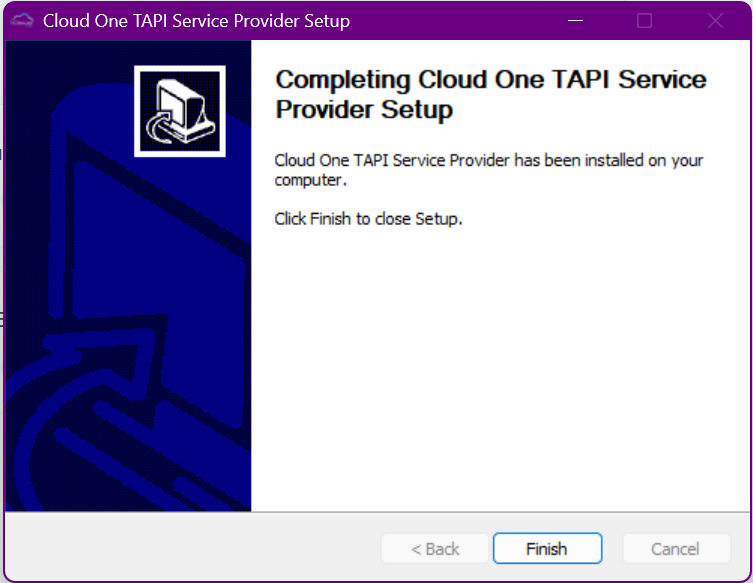
- When finished, click Finish to close the installer program
- In the pop-up window, click OK
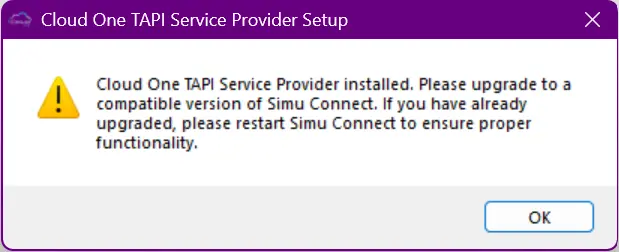
- Restart the Simu Connect Desktop Client.
- Press Win + R to open the Run command window.
Type telephon.cpl and press Enter to open the Phone and Modem window.
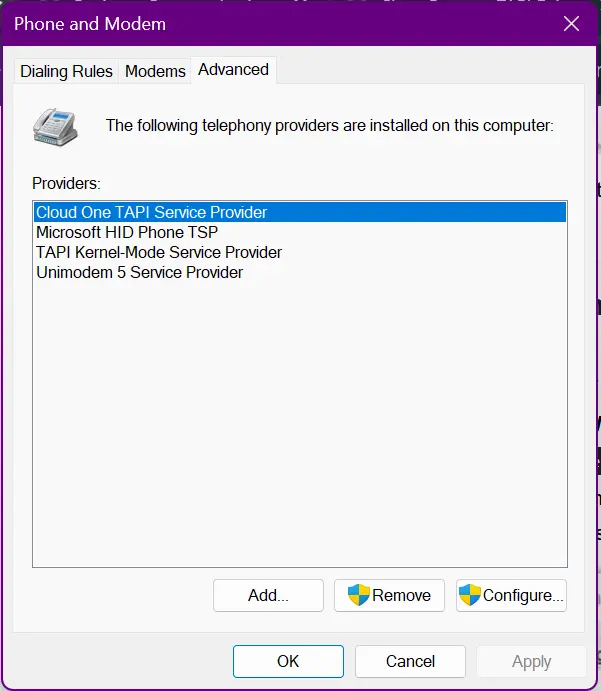
Under the Advanced tab, if you see the Cloud One TAPI Service Provider displayed in the Providers list, it indicates that the Cloud One TAPI driver is installed successfully.
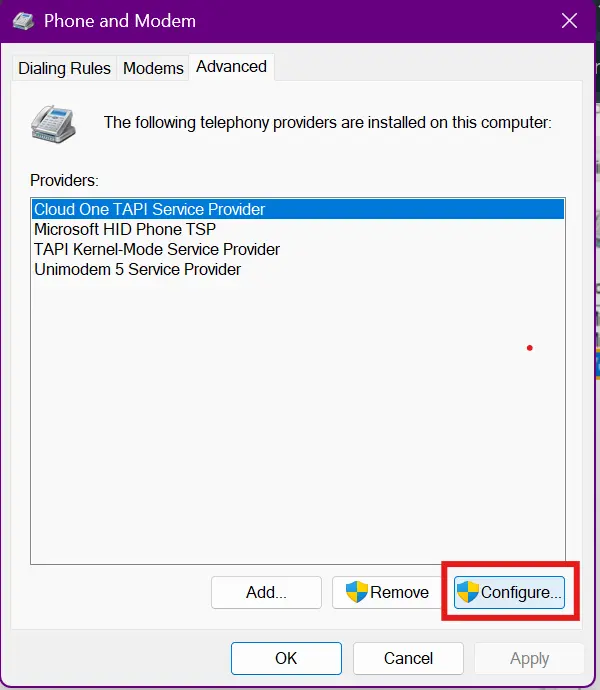
- On the Phone and Modem window, select the Cloud One TAPI Service Provider, then click Configure
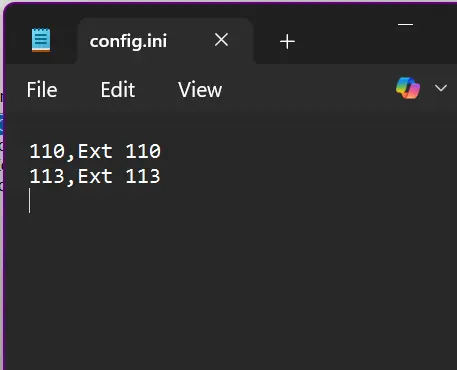
The TAPI driver's configuration file config.ini opens automatically.
- In the configuration file, add as many lines as you need following the structure of the existing configurations, then save the file.
Restart the Telephony service to apply the changes.
- Press Win + R to open the Run command window.
- Type services.msc and press Enter to open the Service window.
- Find and right-click the Telephony service, then select Restart.
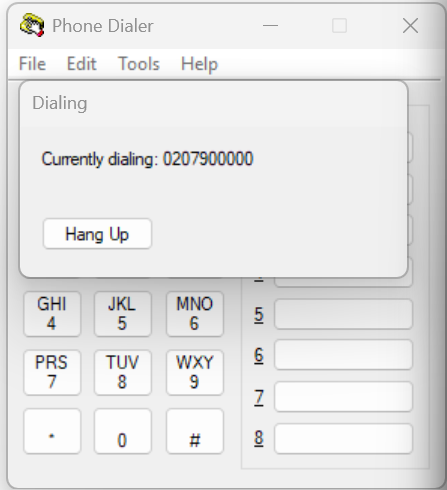
- In this example, we use the Windows Dialer app to show how to make a call via Cloud One TAPI driver.
Prerequisites
- You have logged in to Simu Connect Desktop Client.
- The Dial out immediately setting on Simu Connect Desktop Client has been enabled.
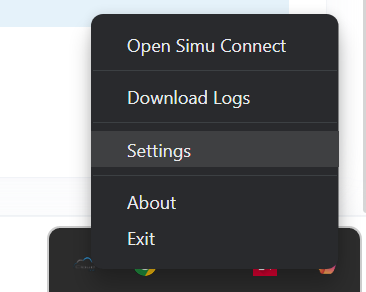
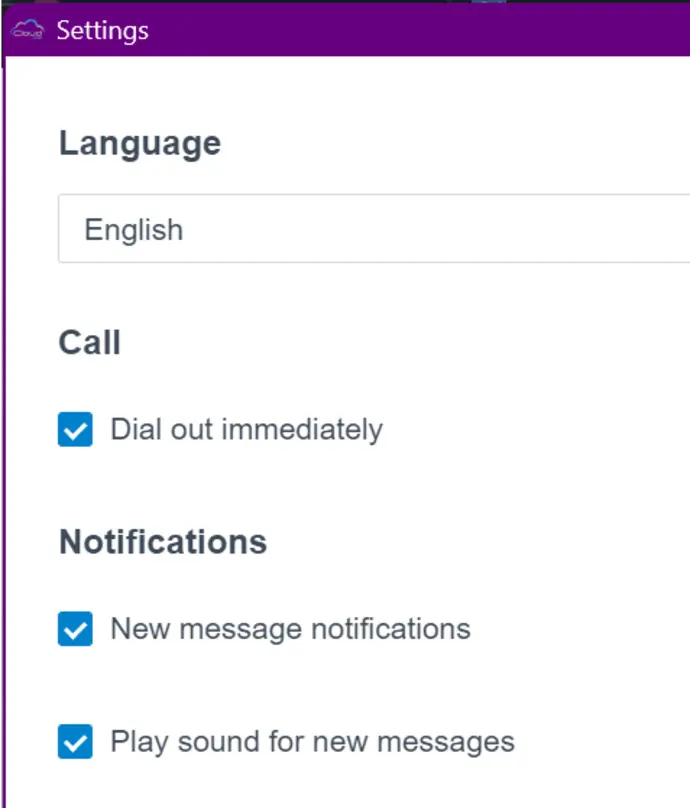
- If you have set up default calling app to other driver or app for your PC before, you need to change it to Simu Connect. See Procedure below
Procedure
- On your PC, press Win + R to open the Run command window.
- Type dialer.exe , then press Enter to open the Phone Dialer window.
- On the top menu, click Tools, then select Connect Using...
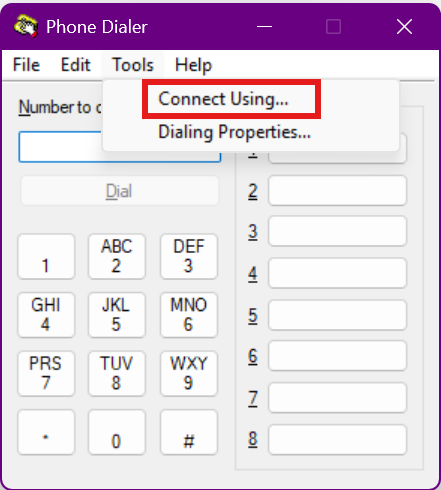
- In the Line drop-down list, select the desired extension, then click OK.
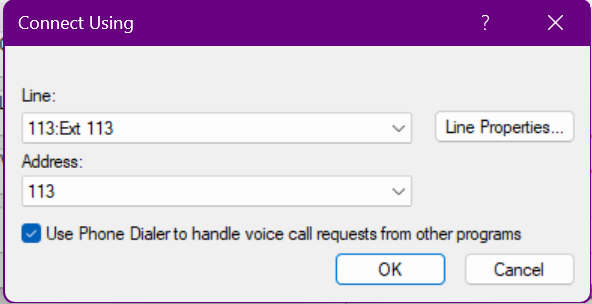
- When the selected extension log in to Simu Connect Desktop Client, the TAPI integration status will be displayed as Connected (Path: Preference > Integration > TAPI Integration); The numbers dialed in the Dialer will be called out through this line.

- In the Number to dial field, enter a phone number and click Dial.
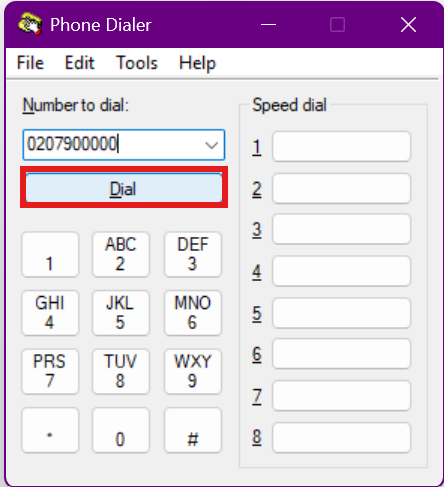
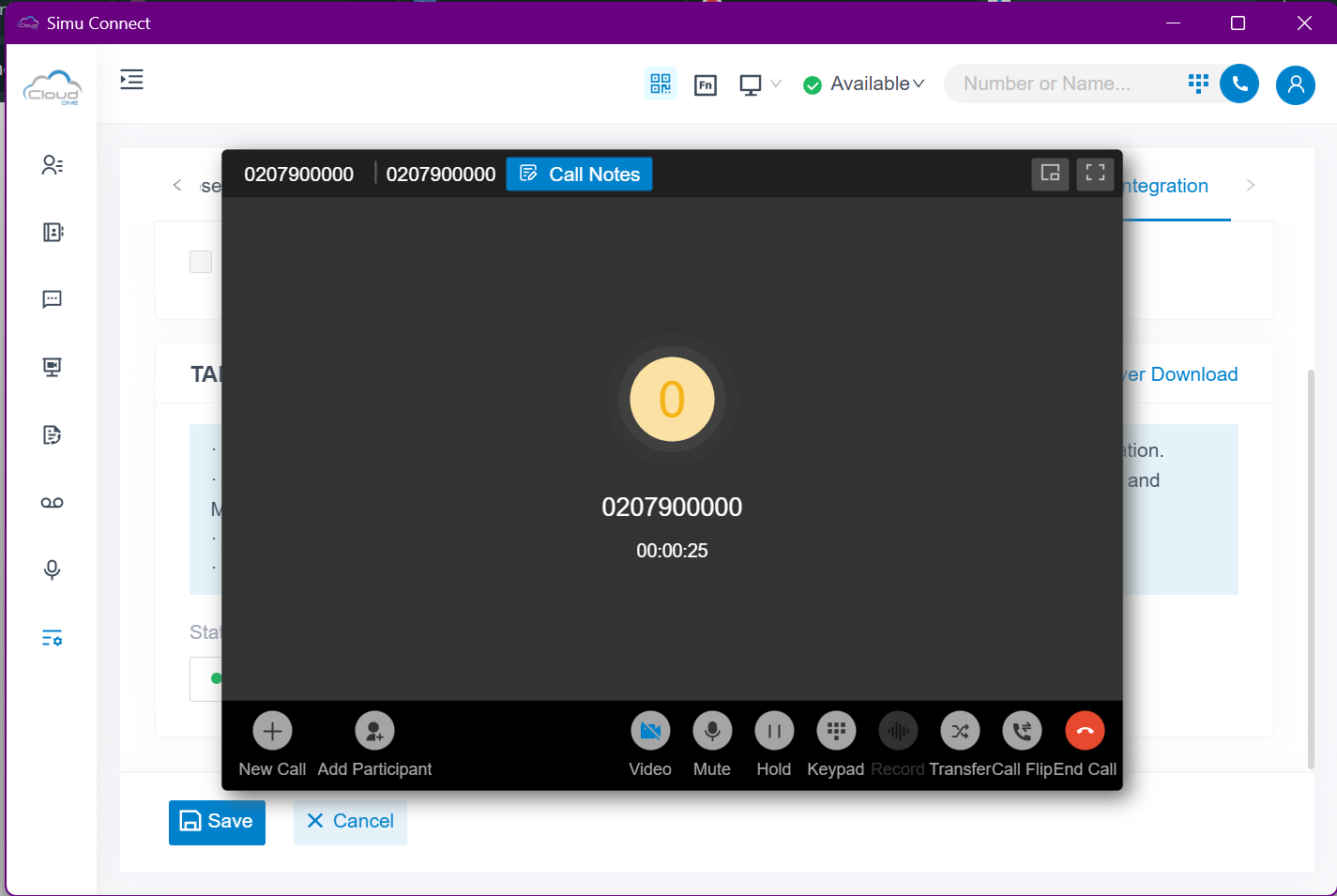
- Simu Connect Desktop Client is launched, initiating an outgoing call.